Install for VS Code
Check system requirements and OS verification before starting.
Start with the WworPoint VS Code extension. It includes the document engine and works on its own: you do not need a separate Node.js, npm or global CLI installation.
Select a screenshot to view it at full size.
1. Prepare VS Code and a browser
Section titled “1. Prepare VS Code and a browser”| What you need | Requirement |
|---|---|
| Desktop VS Code | Version 1.101 or later; official download |
| Local layout browser | Google Chrome, Microsoft Edge or Chromium 154 or later |
| Document folder | A local folder you created or have reviewed |
The extension bundles its engine, tool resources and fonts. It uses the runtime provided by VS Code. It does not download a browser. The browser is required for layout validation, export and rendering Mermaid diagrams. VS Code for the Web and virtual workspaces are unsupported.
2. Open the Command Palette
Section titled “2. Open the Command Palette”Choose View → Command Palette… from the menu. On macOS, the menu is at the top of the screen. On Windows, use the menu at the top of VS Code.
You can also press Shift + Command + P on macOS or Ctrl + Shift + P on Windows/Linux. A search box appears near the top of the editor. Type a command name, select it and press Enter.
3. Install the supplied VSIX
Section titled “3. Install the supplied VSIX”- Save the supplied
.vsixfile somewhere you can find it. - Open the Command Palette and type Extensions: Install from VSIX.
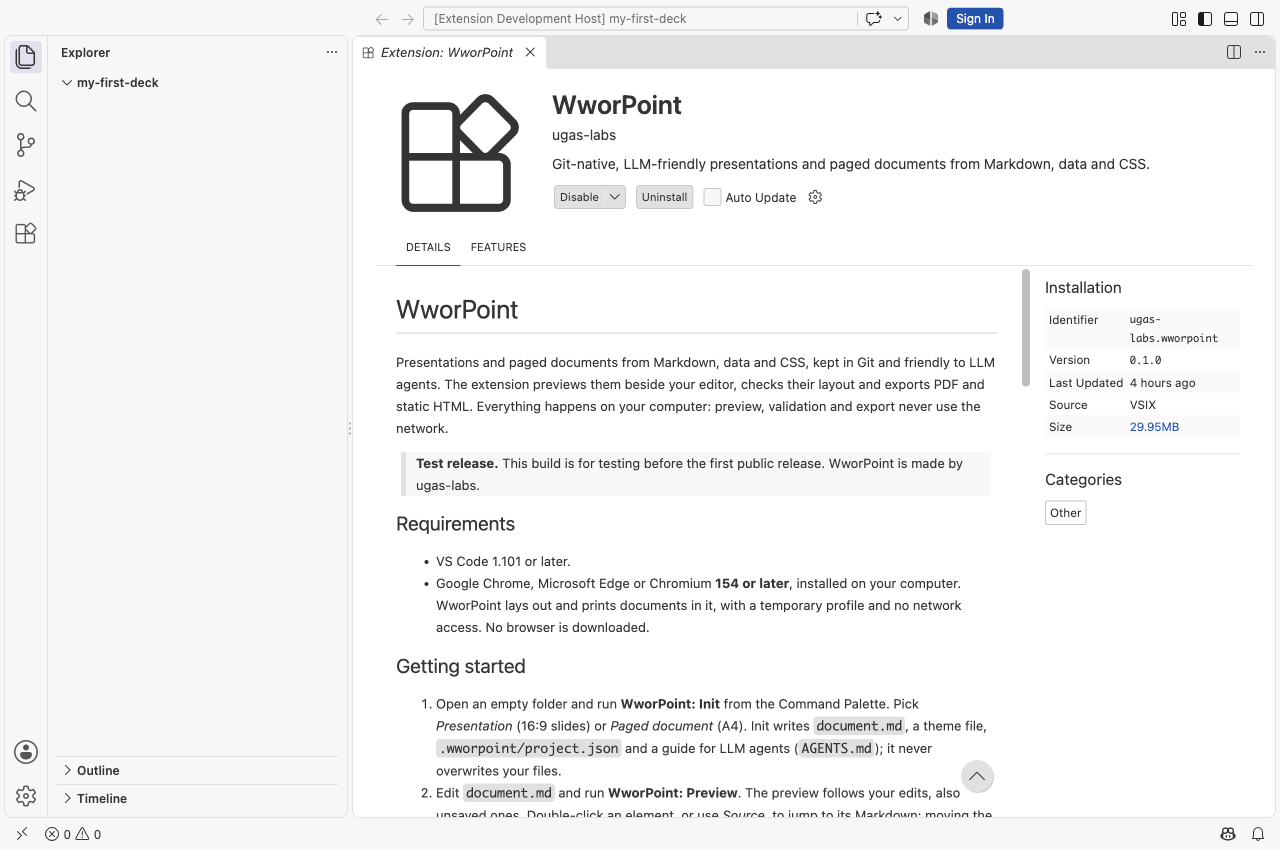
- Select that command, then select the supplied file in the file dialog.
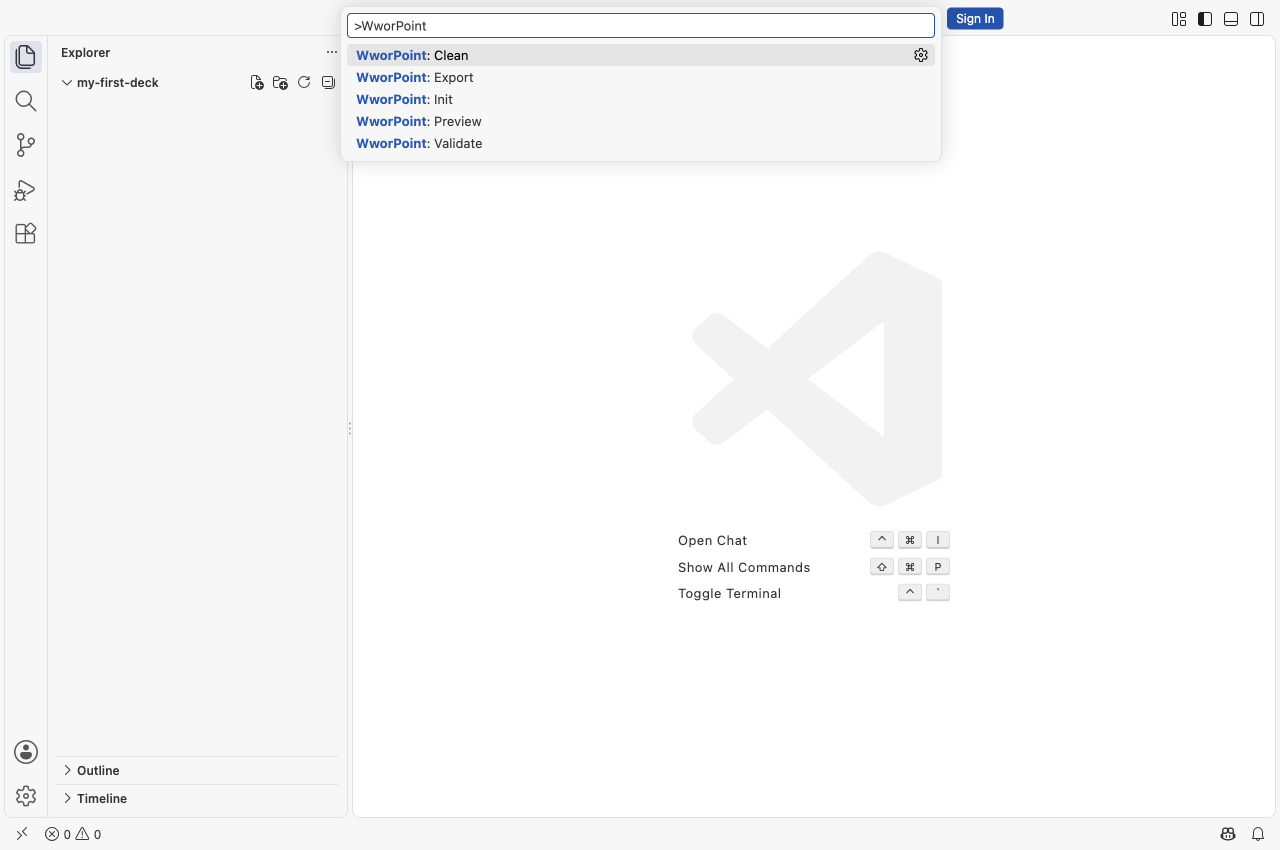
- When installation finishes, open the Command Palette and type WworPoint. Confirm that Init, Preview, Validate and Export appear.
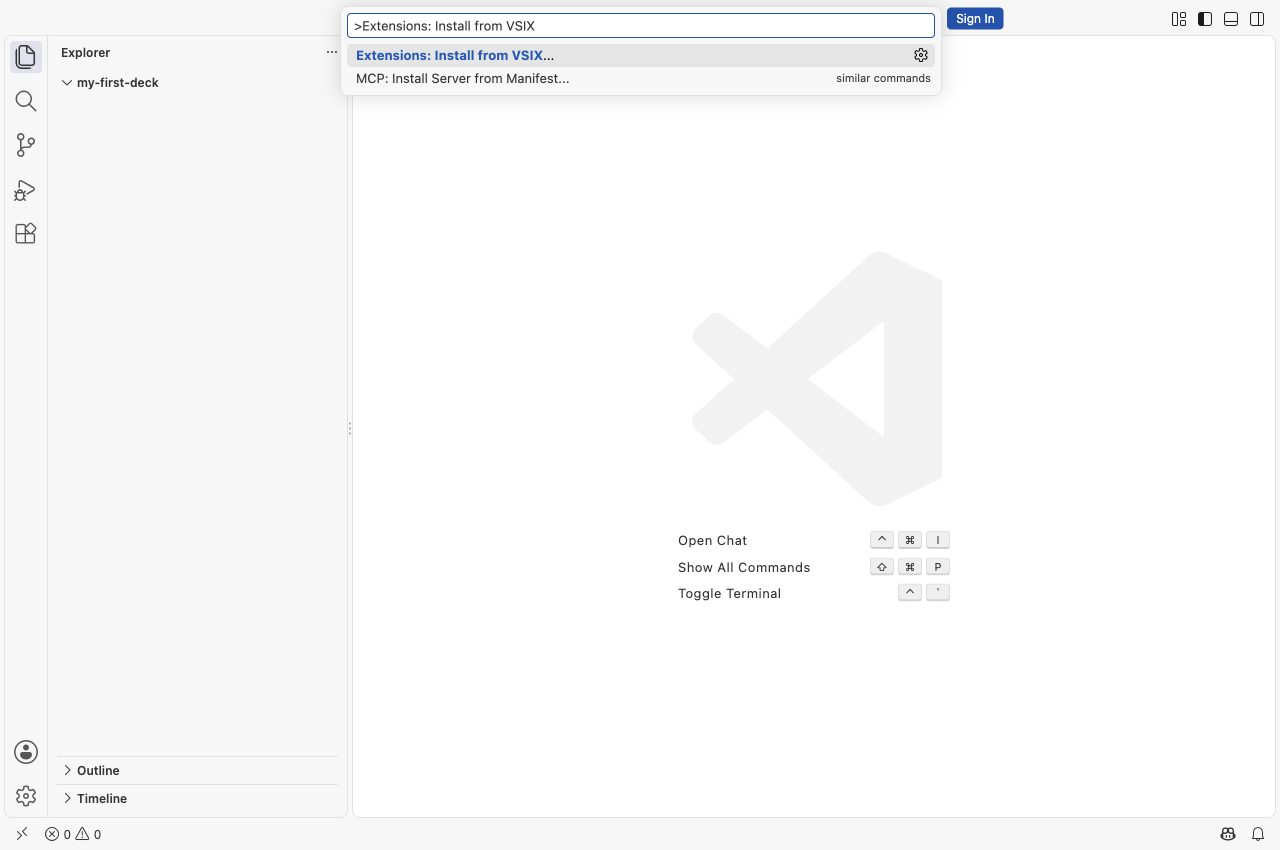
The Extensions view also offers Install from VSIX… in its … menu. The screenshots use an isolated VS Code profile with the current test build; they are actual screens, not Marketplace listings. The development-host label identifies the capture environment.
When a Marketplace release is available
Section titled “When a Marketplace release is available”If a Marketplace release is published, its instructions will identify the official listing. At that point, open View → Extensions, follow that listing and check the publisher before selecting Install. This is a future distribution path, not an available download today.
4. Continue in VS Code
Section titled “4. Continue in VS Code”Make your first document in VS Code →
Only trust folders you created or reviewed. Layout validation, export and diagram/chart rendering require a trusted workspace. Do not enable trust merely to silence a prompt for unknown downloaded files.
If automatic browser detection fails, open Settings and search wworpoint.browserPath; set the absolute path to the browser executable in User settings. This machine policy cannot be set by the document project.
Optional: command line and automation
Section titled “Optional: command line and automation”The CLI is a separate option for terminal workflows and automation. It is not needed for the VS Code guide. Advanced CLI installation →
The menu, shortcuts and VSIX route follow the VS Code user-interface documentation and extension installation documentation.